Fraud Blocker

Thank you for choosing STVCNC®.

STVCNC® is your single-source role model manufacturer trusted by thousands of fabricators globally. Our 50,000 sq. ft. Facility Headquarters in Las Vegas, Nevada is home to factory-direct pricing, transparency & solutions you can depend on. With a solid track record of consistent delivery & customer support, we offer Industry Standard Production Tables built on rich beliefs of committed hard work & delivery with intent to “Bring Manufacturing Back Home” to the States. Aside from this, we are also a proud OEM Distributor for all Hypertherm® products, accessories, consumables all available at our online hub. https://stvcnc.com/hypertherm-consumable-hub/ 

The following document should open a checklist of itemized steps to follow in getting started.

On-Site Requirements

ON-SITE PREREQUISITES

PRE-DELIVERY

We want to make sure you are ready for your delivery and the accessories you will need at your shop prior to your first cut.

Starter Guide: Table Instructions

CHECKPOINT 01

CONFIRMATION

After your Purchase/Financing approval, you will receive a Delivery Email Confirmation with the following:

☑️ Purchase Order Invoice
☑️ Shipping Confirmation
☑️ Owners Access Link

CHECKPOINT 02

UNLOADING

Instructions on what to have ready before the Delivery Transportation arrives.

CHECKPOINT 03

INSPECTION

Instructions on what to do upon receiving your Table on-site and steps to follow before the Delivery Transportation leaves.

CHECKPOINT 04

UNPACKING

Remove the protective wrapping on your Table.

CHECKPOINT 05

WATER TABLE

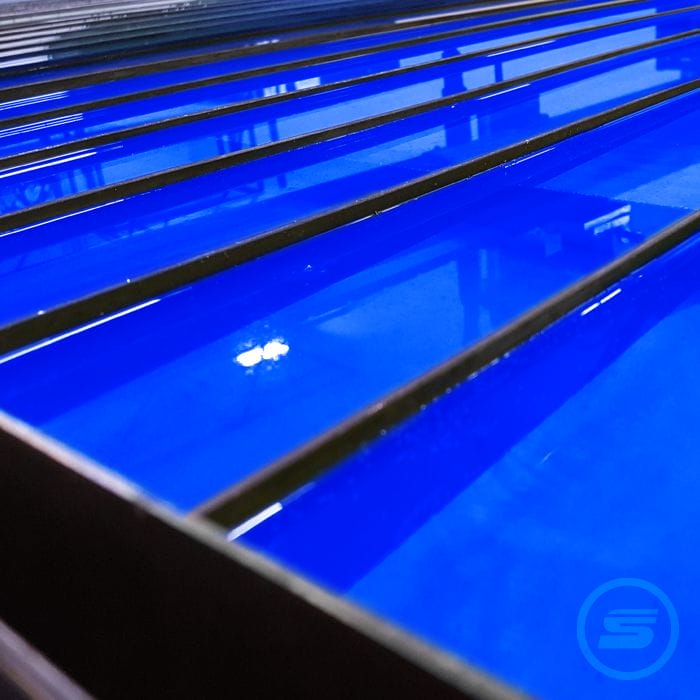
Protect your Water Table with an anti-rust additive solution to prevent rust & debris while offering a cooling process that lessens warping of materials and the presence of fumes in your workshop.

Starter Guide: Connections

CHECKPOINT 06

CONNECTIONS

Important: Many Table Owners have a wide range of custom setup & on-site preferences. Depending on your chosen software you will be required to source the following:

Click on the topic tab that pertains to your purchase

MYPLASM CNC SOFTWARE

MyPlasm CNC Software

If your Table is equipped with Proma MyPlasm CNC Software you will be required to source the following: 

➤ Minimum of 3 GHz Desktop Computer or Laptop, Windows XP or newer with 16 GB RAM, 250 MB storage, 2 USB ports. This computer will be used to install the MyPlasm Software.

Connections as followed:

01. Connect USB Cable from Computer to the Control Box

02. Connect Control Box Power Cable from backside of the Control Box to 110VAC POWER

( Click on image to enlarge. )


OPTIMUM CNC SOFTWARE

Optimum CNC Software

If your Table is equipped with Optimum CNC Software you will be required to source the following:

➤ Monitor TV with HDMI cable port connection.

➤ Wireless Mouse

➤ Wireless Keyboard

Click here to read Frequently Asked Questions for OptimumCNC Controller Software
CHECKPOINT 07

SENSORS

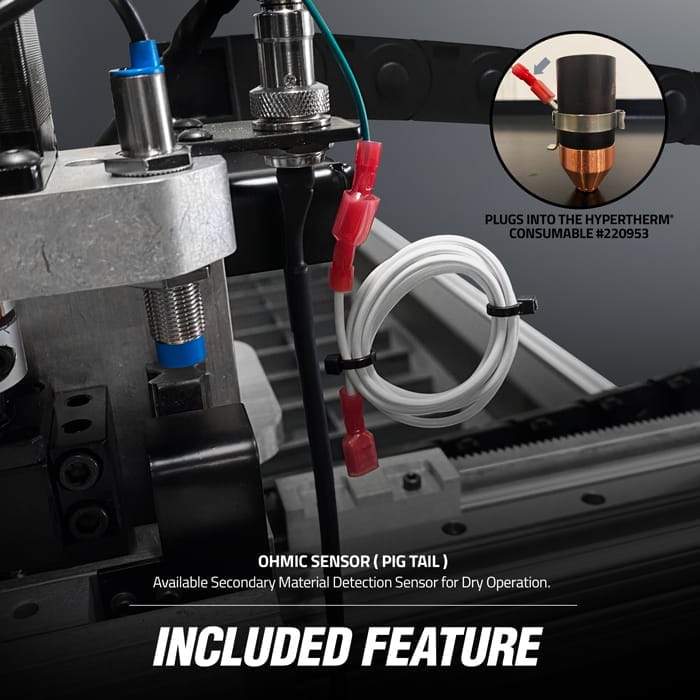
Learn about the sensors you have installed on your table and their benefits from Homing to Ohmic Sensing.

CHECKPOINT 08

CPC INTERFACE CABLE

Ensure you have the correct CPC Interface Cable and the instructions for installation:

CHECKPOINT 09

HYPERTHERM®

For Safety, Please read your plasma cutter’s manual that came included with your purchase. Make sure to unlock your Machine Torch Slider, setting it to “Green”. Follow below for more Hypertherm® consumable related info.

Click on the topic tabs below to read more

CUTTER UNIT SUPPORT

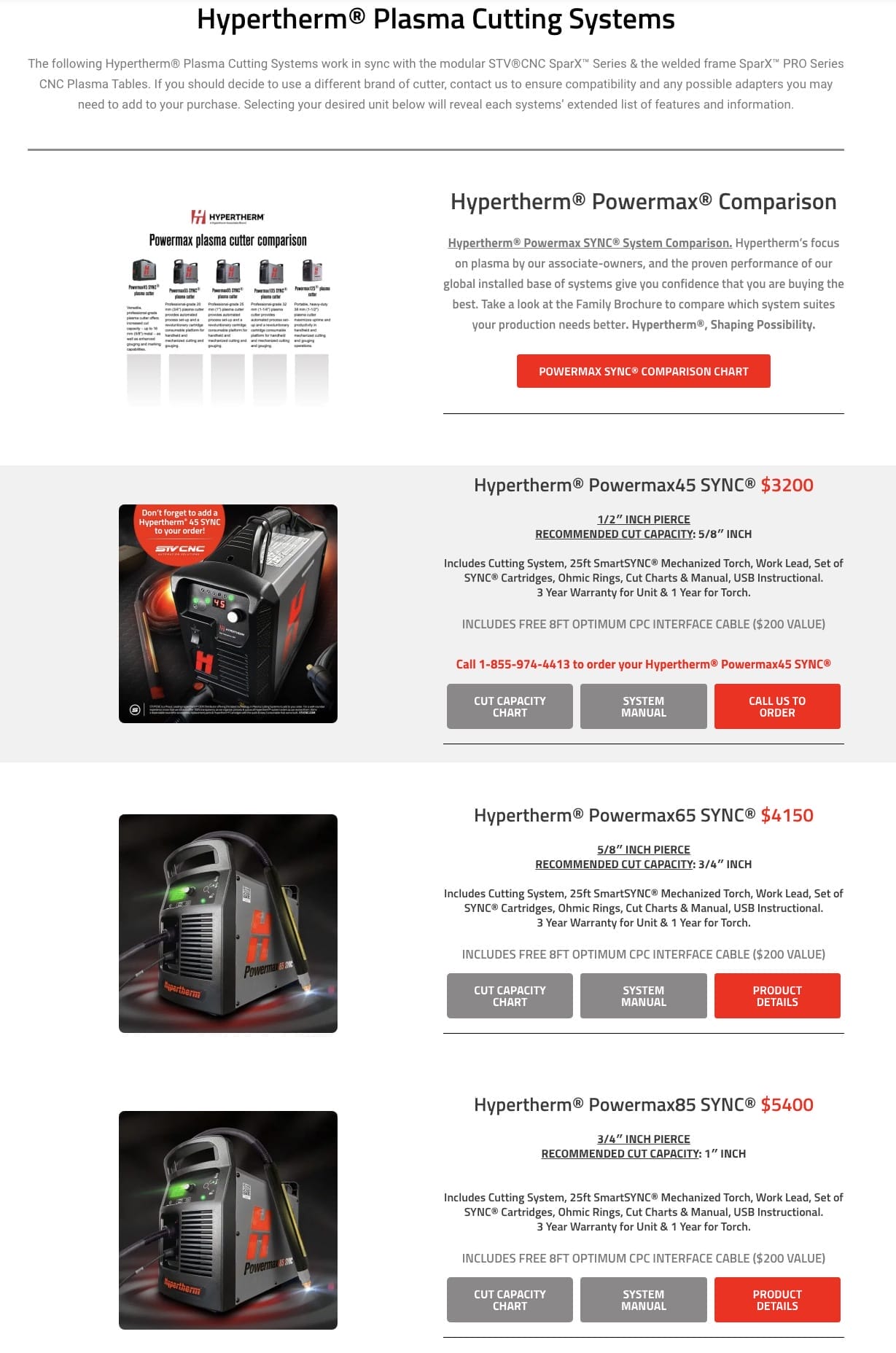
STV®CNC is a Proud, Leading Hypertherm® OEM Distributor offering the latest technology in Plasma Cutting Systems. For a well-rounded experience, know that we strive to offer 100% transparency as we organize, process & queue all Hypertherm® system orders and tech support as we receive them. We’re a dependable source for accessories, replacement parts & Hvpertherm® Consumables with the quick & easy Consumable Hub we’ve built. All Hypertherm® System purchases come with a CPC Interface Cable for that system. If you choose to cut with a third-party non-hypertherm system

Click here to See Hypertherm® Systems

OPTION 1: Hypertherm® Tech Support: 1-800-643-9878

OPTION 2:  STV®CNC Tech Support Ticket: https://stvcnc.com/support

With Option 2 we can conference call, delegate, and expedite tech support along with you, your plasma unit’s warranty and Hypertherm® directly.

NON-SYNC CONSUMABLES

Mechanized cartridges provide optimal production performance when cutting. Exceeding optimal thickness range can result in decreases in speed and cut quality. To maximize cartridge life and performance select the correct amperage cartridge for the workpiece you are cutting.

Click here to purchase Non-SYNC Consumables

stvcnc-sparxseries-plasma-cut-table-metal-iron-brass-copper-stainless-aluminum-ironworks-manufacturing-torch-fabrication-custom-metalart-industrial-stvmotorsport-stvcnc-cnc-plasmatable-plasmacut-metal-art-steel-artwork-industrial-waterpan-gantry-hypertherm-torch-cnc-plasma-hobbyist-signmaker-powermax-stv-fabrication-weld-customsign-cnctable-sparx-sparxpro-heavyduty

FineCut® consumables are ideal for cutting intricate, fine-featured shapes out of thin sheet metal. These specialty consumables are specifically engineered to provide squarer edges, tighter tolerances, and a narrower kerf on thin metals.

FineCut® consumables work with both hand-held and machine-mounted Powermax® plasma torches. If cutting by hand, FineCut® usage is straightforward, just install the consumables and start cutting. Although consumable installation and the plasma process are similar for the machine torch, the CNC machine capabilities ultimately determine the level of cut quality that can be achieved.

( Click on image to enlarge. )

SYNC CARTRIDGES

Mechanized cartridges provide optimal production performance when cutting. Exceeding optimal thickness range can result in decreases in speed and cut quality. To maximize cartridge life and performance select the correct amperage cartridge for the workpiece you are cutting.

Click here to purchase SYNC Cartridges.

Why are Cartridges better than regular Non-Sync Consumables?

01.CARTRIDGE LIFE:

  • Cartridge lasts up to twice as long when hand cutting and provides improved cut quality for mechanized torch simpler ordering and inventory management
  • Traditional consumable pieces wear out at different times/rates

02.VERSATILITY & CONTROL:

  • Avoid having to stock 5 different consumable parts on hand
  • After a quick install onto the torch, system automatically sets the correct amperage without guessing, sets air pressure and goes into cutting mode.
  • SYNC torch has built-in controls which allow the operator to adjust the amperage and turn the torch on and off without returning to the power supply.
  • Alleviates the process of training on-site employees on usage
  • Ability to swap out for other cutting styles: Drag cutting, Bevel cutting, Fine feature cutting, Flush cutting, Extended reach cutting, Gouging

03.ALERTS & DATA:

  • Cartridge Reader allows to analyze performance for starts, transfers, arc-on time, and other valuable cartridge data from the cut job into your project cost analysis for customers
  • Cartridge notifies 1st and 2nd end of life alerts.
  • Cartridge data can help you spot issues early on before consumable life is impacted or a specific project mid cut.

04.TROUBLESHOOTING:

  • Reduce inspection time with consumables
  • Reduce troubleshooting down to one cartridge piece, instead of 5 pieces in the correct order.

This section answers questions and phrases like: Why are sync cartridges better? Why are Hypertherm sync consumables better? compare sync consumables; standard consumables versus sync cartridges; hypertherm consumable comparison of old and new sync cartridges; benefits of sync consumables; one piece cartridge versus consumables; sync system torch consumable compare; sync cut quality; consumable life; powermax consumable troubleshooting for sync cartridges

( Click on image to enlarge. )

Hypertherm Powermax105 sync 428934

CARTRIDGE READER

The Hypertherm® cartridge reader works with the Powermax SYNC™ cartridge reader app to provide a simple process for reviewing data stored in Hypertherm® cartridges. The cartridge reader fits into the cartridge and works with the near-field communication (NFC) antenna of your mobile device to transfer data stored in the cartridge into the app. Data in the app can then be imported into the cartridge excel data analysis tool, or a customer created tool, to analyze performance for starts, transfers, arc-on time, and other valuable cartridge data. Analysis of this data helps customers better understand cartridge utilization and identify operator training opportunities.

The Powermax SYNC cartridge reader app can be downloaded from most popular app stores.

How to Video: Cartridge Reader


Purchase Cartridge Reader


Download Cartridge Reader App

PLASMA SYSTEMS

Click here to Access Hypertherm®  Systems.

( Click on image to enlarge. )

CHECKPOINT 09 ( CONTINUED )

HYPERTHERM® MANUALS

For Safety, Please read your plasma cutter’s manuals included with your purchase.

Click on the tabs below to read more

Hypertherm® Powermax45® XP

OPERATOR & INSTRUCTION MANUALS

Cut Charts for Cartridge Adapter on Duramax Torches (Multilingual) (Revision 1)

Last updated   13/12/2022
Part number: 811300MU

PDF (5.59MB) Download

Powermax45 XP Operator Manual (Revision 4)

Last updated   04/01/2021
Part number: 809240

PDF (17.26MB)Download

Safety and Compliance Manual (Revision 9) (Multilingual)

Last updated   18/07/2023
Part number: 80669C

PDF (6.42MB)Download

Click here for more manuals
Hypertherm® Powermax65®

OPERATOR & INSTRUCTION MANUALS

Powermax65/85 Operator Manual (806650 revision 4)
Last updated   29/06/2018

PDF (5.71MB) Download

Safety and Compliance Manual (Revision 9) (Multilingual)
Last updated   18/07/2023
Part number: 80669C

PDF (6.42MB) Download

Troubleshooting for Powermax cutting for Powermax65/85/105
Last updated   24/01/2018
Part number: 894390

PDF (357KB) Download

Powermax machine-side reference guide for mechanized applications with Powermax65/85/105
Last updated   15/02/2018
Part number: 894380

PDF (1.24MB) Download

Service Manual – Powermax65/85 (Revision 4)
Last updated   22/03/2022
Part number: 807120

PDF (20.36MB)Download

Click here for more manuals
Hypertherm® Powermax85®

OPERATOR & INSTRUCTION MANUALS

Powermax65/85 Operator Manual (806650 revision 4)
Last updated   29/06/2018

PDF (5.71MB) Download

Safety and Compliance Manual (Revision 9) (Multilingual)
Last updated   18/07/2023
Part number: 80669C

PDF (6.42MB) Download

Troubleshooting for Powermax cutting for Powermax65/85/105
Last updated   24/01/2018
Part number: 894390

PDF (357KB) Download

Powermax machine-side reference guide for mechanized applications with Powermax65/85/105
Last updated   15/02/2018
Part number: 894380

PDF (1.24MB) Download

Service Manual – Powermax65/85 (Revision 4)
Last updated   22/03/2022
Part number: 807120

PDF (20.36MB)Download

Click here for more manuals
Hypertherm® Powermax105®

OPERATOR & INSTRUCTION MANUALS


Powermax105 Operator Manual (807390 revision 3)
Last updated   08/05/2018
Part number: 807390

PDF (5.74MB) Download

Troubleshooting for Powermax cutting for Powermax65/85/105
Last updated   24/01/2018
Part number: 894390

PDF (357KB) Download

Safety and Compliance Manual (Revision 9) (Multilingual)
Last updated   18/07/2023
Part number: 80669C

PDF (6.42MB)Download

Powermax machine-side reference guide for mechanized applications with Powermax65/85/105
Last updated   15/02/2018
Part number: 894380

PDF (1.24MB)Download

Powermax105 Service Manual (807580 revision 3)
Last updated   08/05/2018
Part number: 807580

PDF (19.59MB) Download

Click here for more manuals
Hypertherm® Powermax125®

OPERATOR & INSTRUCTION MANUALS

Powermax125 Operator Manual (Revision 3)

Last updated   18/11/2016
Part number: 808080

PDF (15.63MB)Download

Safety and Compliance Manual (Revision 9) (Multilingual)

Last updated   18/07/2023
Part number: 80669C

PDF (6.42MB) Download

Powermax125 Service Manual (English) Revision 3

Last updated   18/11/2016
Part number: 808070

PDF (34.94MB) Download

Click here for more manuals
Hypertherm® Powermax45 SYNC®

OPERATOR & INSTRUCTION MANUALS

Getting Started Guide for Powermax45 SYNC (Revision 0)
Last updated   04/06/2024
Part number: 811520MU

PDF (11.16MB).  Download

Operator Manual for Powermax45 SYNC (Revision 2)
Last updated   18/06/2024

PDF (16.92MB) Download

Cut Charts for Powermax45/65/85/105 SYNC (Multilingual) (Revision 4)
Last updated   04/06/2024

PDF (5.51MB) Download

Mechanized Cutting with Powermax45/65/85/105 SYNC (Revision 5)
Last updated   04/06/2024

PDF (13.1MB)  Download

Safety and Compliance Manual (Revision 9) (Multilingual)
Last updated   18/07/2023

PDF (6.42MB) Download

Click here for more manuals
Hypertherm® Powermax65 SYNC®

OPERATOR & INSTRUCTION MANUALS

Operator Manual for Powermax65/85/105 SYNC (Revision 4)
Last updated   09/09/2022
Part number: 810470

PDF (15.17MB) Download

Cut Charts for Powermax45/65/85/105 SYNC (Multilingual) (Revision 4)
Last updated   04/06/2024
Part number: 810500MU

PDF (5.51MB) Download

Mechanized Cutting with Powermax45/65/85/105 SYNC (Revision 5)
Last updated   04/06/2024
Part number: 810480

PDF (13.1MB)  Download

Click here for more manuals
Hypertherm® Powermax85 SYNC®

OPERATOR & INSTRUCTION MANUALS

Operator Manual for Powermax65/85/105 SYNC (Revision 4)
Last updated   09/09/2022
Part number: 810470

PDF (15.17MB)   Download

Cut Charts for Powermax45/65/85/105 SYNC (Multilingual) (Revision 4)
Last updated   04/06/2024
Part number: 810500MU

PDF (5.51MB) Download

Mechanized Cutting with Powermax45/65/85/105 SYNC (Revision 5)
Last updated   04/06/2024
Part number: 810480

PDF (13.1MB) Download

Safety and Compliance Manual (Revision 9) (Multilingual)
Last updated   18/07/2023
Part number: 80669C

PDF (6.42MB) Download

Troubleshooting for Powermax65/85/105 SYNC
Last updated   11/02/2022
Part number: 810430

PDF (16.9MB) Download

Click here for more manuals
Hypertherm® Powermax105 SYNC®

OPERATOR & INSTRUCTION MANUALS

Operator Manual for Powermax65/85/105 SYNC (Revision 4)
Last updated   09/09/2022
Part number: 810470

PDF (15.17MB) Download

Cut Charts for Powermax45/65/85/105 SYNC (Multilingual) (Revision 4)
Last updated   04/06/2024
Part number: 810500MU

PDF (5.51MB) Download

Mechanized Cutting with Powermax45/65/85/105 SYNC (Revision 5)
Last updated   04/06/2024
Part number: 810480

PDF (13.1MB) Download

Click here for more manuals

Starter Guide: Table Owner's Access

CHECKPOINT 10

ACCESS LINK

Every system has access to proprietary owners manuals, videos, cut files, documentation & helpful files.

How to find your Owner’s Access Link:

After your Purchase/Financing approval, you would of received an Email labeled as “STVCNC Shipping Email” with the “Owners Access Link”. 

This Email contains the Link to the following:

☑️ Owners Documents

☑️ Main QR Code PDF

☑️ Manuals

☑️ DXF Library

☑️ Tutorial Videos

☑️ Maintenance & Tips

☑️ Design Software & Art Session Tutorials

Here you will search for the “Manuals” Folder to access the OptimumCNC Manual.

CHECKPOINT 11

VIDEO TUTORIALS & MANUAL

Quicken your learning curve by watching Tutorial Videos on Youtube or directly from your Owners Access Link.

Click on the topic tab that pertains to your purchase

MYPLASM CNC VIDEOS

MyPlasm CNC Software

If your Table is equipped with Proma MyPlasm CNC Software you will be required to view the MyPlasm Tutorial Videos (Run Time: 1 hour) available in your “Owner’s Access Link” that was emailed to you along with your shipping confirmation.

➤ In your Owner’s Link you will find a folder labeled “Tutorial videos” with 13 videos to watch. (Run Time: 1 hour)

➤ In your Owner’s Link you will also find a folder labeled “Art Sessions” with design videos to watch for “How to sessions” for Inkscape and Illustrator and exporting files for MyPlasm.

➤ You can also find the MyPlasmCNC Software Manual in your ACCESS LINK under the “Software” folder.

➤ You can also find the PDF User Manual in the software. (Tap on image below to enlarge)

OPTIMUM CNC VIDEOS

Optimum CNC Software

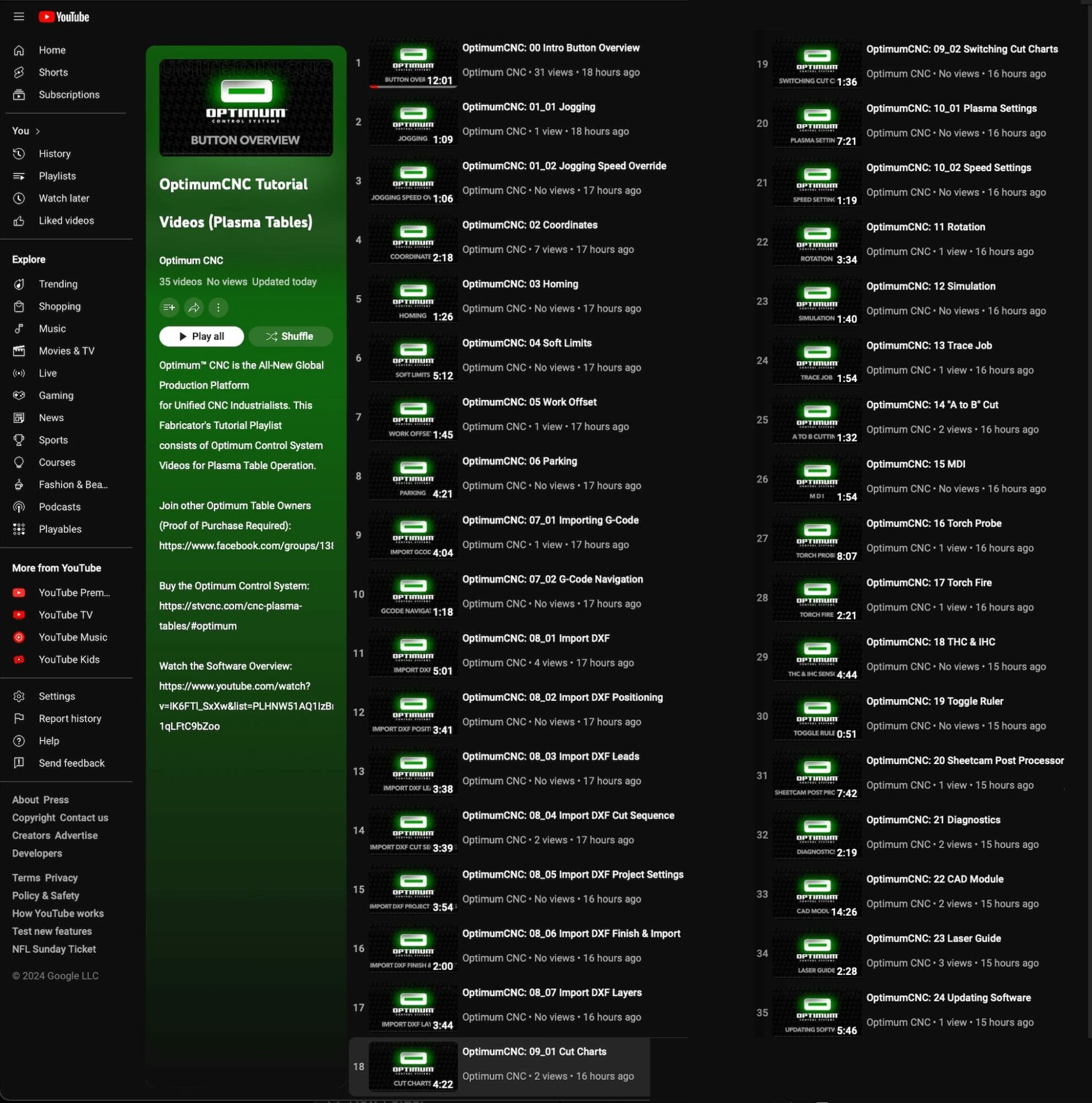
If your Table is equipped with Optimum CNC Software you will be required to view the Optimum CNC Tutorial Videos (Run Time: 2 hours, 15 minutes) available in your Owner’s Access Link that was emailed to you along with your shipping confirmation.

➤ In your Owner’s Link you will find a folder labeled “Tutorial videos” with 41 videos to watch. (Run Time: 2 hours, 15 minutes)

➤ In your Owner’s Link you will also find a folder labeled “Art Sessions” with design videos to watch for “How-to sessions” for Inkscape and Illustrator and how to export files.

➤ You can also find the OptimumCNC Software Manual in your ACCESS LINK under the “Manuals” folder.


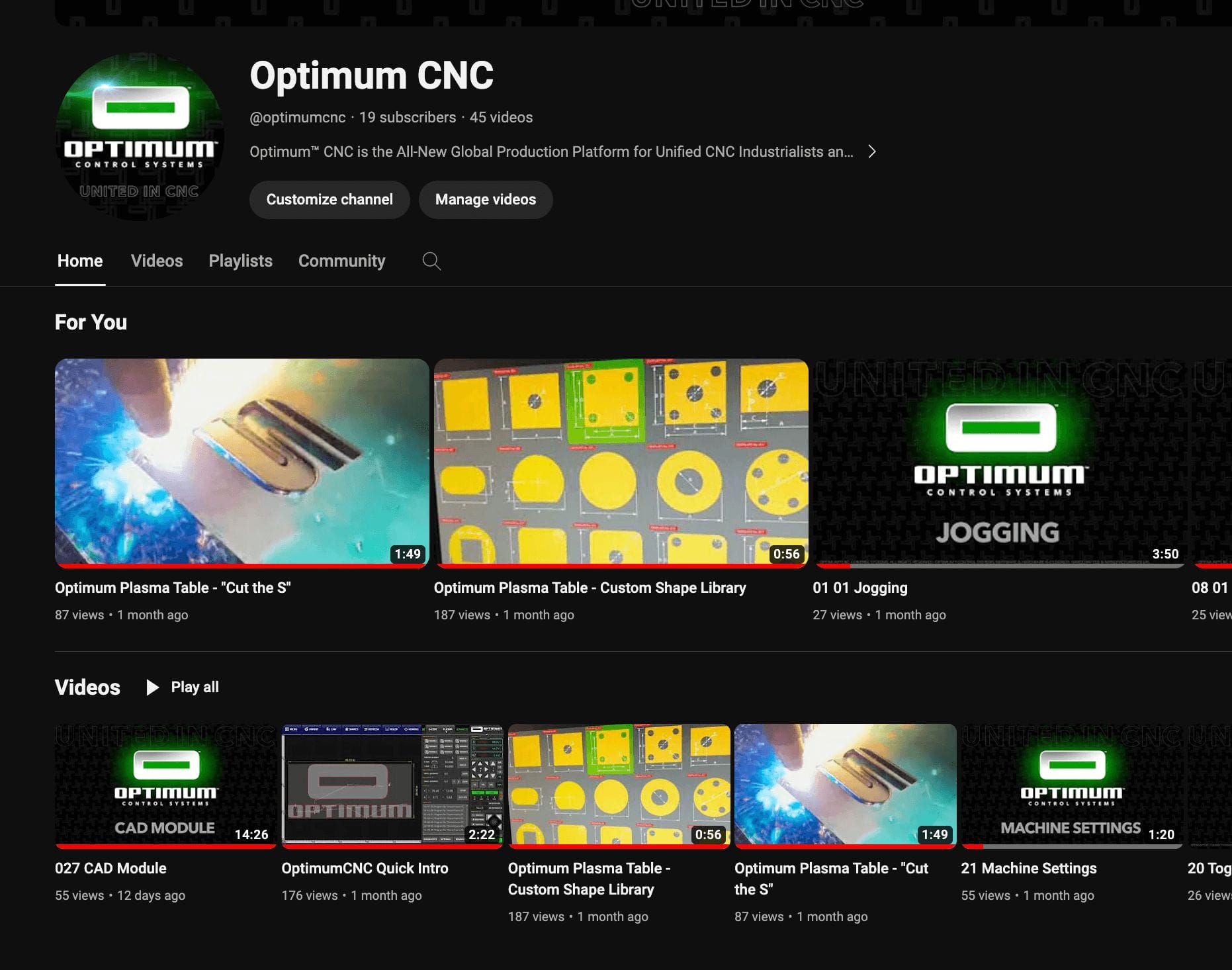
Optimum CNC Tutorial Videos can be found on the Optimum CNC Youtube Channel and are also available on the Optimum CNC website.

CHECKPOINT 12

ART & DXF CUT FILES

The Owners Access Link has 1000+ DXF files you get to start cutting with, plus we offer free programs and art sessions you can learn.

Click on the topic tab that pertains to your purchase

FREE DESIGN PROGRAMS

Select a ART PROGRAM

You will need to select a program to create artwork. We want to make it easier for you to excel in your learning curve to be a pro at this stage of production. Mastering the artistic side of fabrication, you will be able to cut the right corners to save money & time on the back end of projects. Designs can be created on a separate computer and transfered to cut on the table via USB drive.

INKSCAPE: In your Owner’s Access Link emailed to you, you will find a folder called “Design Software” where you can download Inkscape into your laptop or desktop computer. After Purchase, The “Owners Access Link” sent to you will have Inkscape Tutorial videos we’ve prepared for you.

Click here to download Inkscape

MYPLASM CNC: If you selected Proma MyPlasm Software as your Controller, you will find the MyPlasm .exe file in your Owner’s Access Link emailed to you, within the “Software My PlasmCNC” folder (See Section 7 Connections on this page). When you download and install MyPlasm into your laptop or desktop computer, the software has MyMiniCAD to design cut files. Know in advance, that MyMiniCAD outputs proprietary .2d files that may or may not play well with other third-party software. 

Click here to download MyPlasm CNC

OPTIMUM CNC: If you selected Optimum CNC as your Controller, you will find on your MiniPC, the Optimum CNC Software. Once you setup your Optimum MiniPC (See Section 7 Connections) and turn it on, you will see the Optimum CNC program has a CAD /CAM section to draw cut files, plus you also have a Library of 80+ editable shapes in-program as well.

Click here for more info on Optimum CNC

QCAD: Feel free to download the QCAD program into your laptop or desktop computer. This is also another free program one can use to create DXF files and transfer to the MyPlasm / OptimumCNC program for cutting.

Click here to download QCAD

ILLUSTRATOR: Feel free to download a free trial of Adobe Illustrator into your laptop or desktop computer. This is also another free trial program one can use to output DXF files and transfer to the MyPlasm / OptimumCNC program for cutting.

Click here to download Adobe Illustrator

PAID PROGRAMS: Other programs one can purchase are Autodesk Fusion 360, SheetCam, MasterCam, CorelDraw, Solidworks.

DXF LIBRARY

1000+ DXF Cut Files

In your Owner’s Access Link emailed to you, you will find a folder called “DXF Library” where you can access a wide assortment of DXF files to cut.

➤ In the “DXF Library” folder you will also find a “FONTS” folder where you’ll find a list of commercial fonts with built-in tabs to prevent letter dropouts.

➤ In the “DXF Library” folder you will also find an assortment of files organized by categories to help search. Each folder contains dxf files and their corresponding jpgs for quick preview. One can mix and match different dxf files together to create complete designs.

PREVIEWING DXF LIBRARY

Previewing DXF Cut Files

You can preview your DXF Library from within your Owner’s Access Link emailed to you, you will find a folder called “DXF Library” where you will find jpeg images of the files within the same folder.

OPTION: If you have OptimumCNC, You can download the DXF files into a USB and install them into your Optimum MiniPC to preview files. In your Tutorials videos, watch the video labeled “Import DXF Cut Files” for further instructions. 

OPTION: You can download and install DXF files into an external Laptop/Desktop Computer to preview the files using the Inkscape Design Program or any other Design Program that applies.

OPTION: If you have MyPlasmCNC, You can download the DXF files into a USB and install them into your Laptop/Desktop Computer to preview files using the MyPlasm CNC Import file’s preview window.

Attention: Attempting to view files via MOBILE PHONE will not have the same expected results, as the DXF is NOT a mobile-friendly format for viewing, unless you download a DWG/DXF viewer app on the mobile device.

CREATING ART FILES

Creating Artwork

Aside from mixing and matching the various DXF files we’ve offered you, we would like you to also master the ability to create your own. We’ve take the time to produce Art Session Videos that will guide you step by step.

➤ In your “Owner’s Access Link” emailed to you, you will find a folder labeled “Art Sessions” that is full of hour videos that will guide art creation and how-to’s in programs like INKSCAPE, PHOTOSHOP and ILLUSTRATOR.

CHECKPOINT 13

UPDATES

Important: Depending on your chosen software you can follow these steps:

Click on the topic tab that pertains to your purchase

MYPLASM CNC SOFTWARE

MyPlasm CNC Software

If your Table is equipped with Proma MyPlasm CNC Software you will be updating software in this fashion: 

( Click on image to enlarge. )

OPTIMUM CNC SOFTWARE

Optimum CNC Software

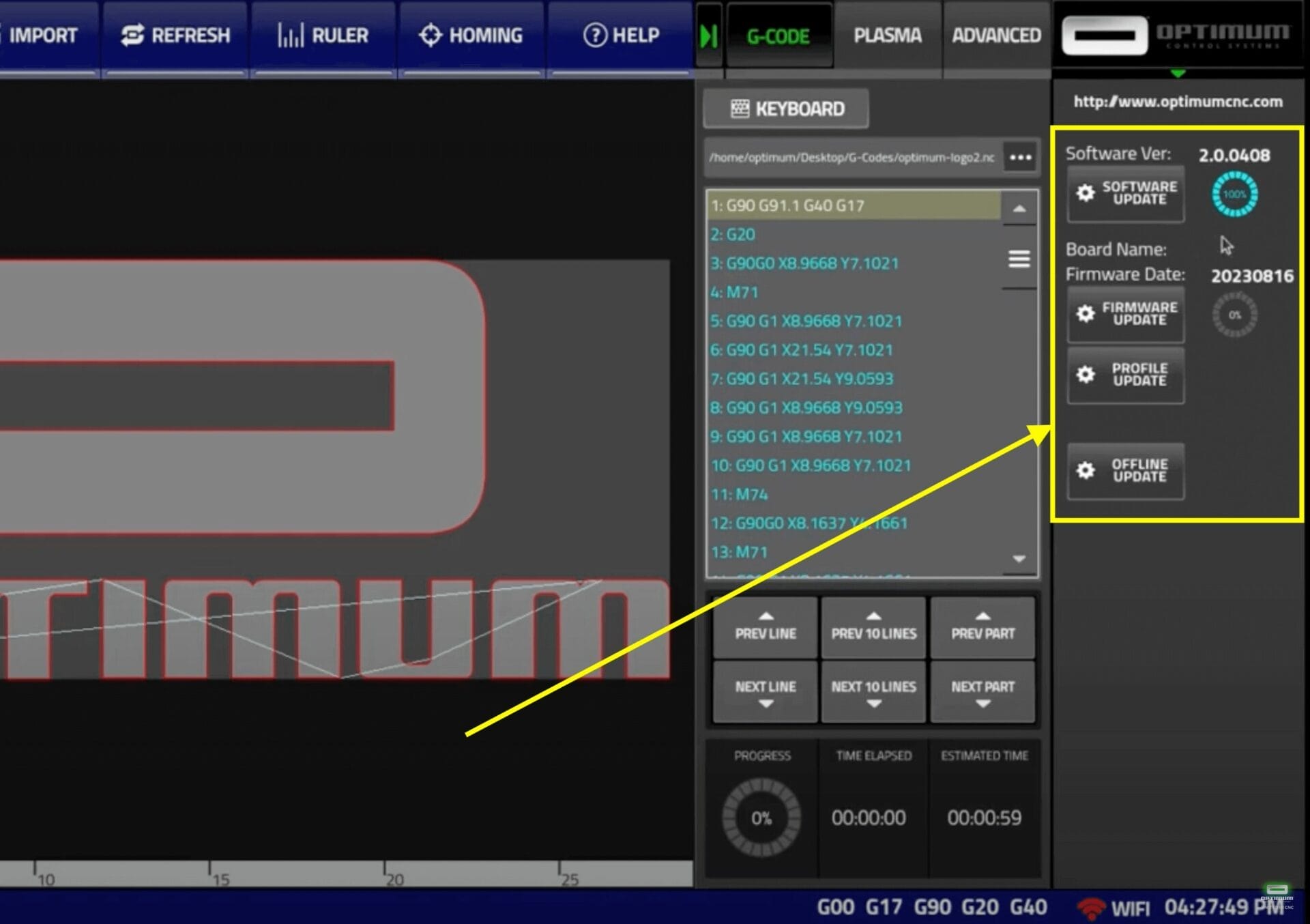
If your Table is equipped with Optimum CNC Software you will update your system as followed:

➤ In your Owner’s Link you will find a folder labeled “Tutorial videos” with 37 videos to watch. (Run Time: 2 hours, 15 minutes) Within this folder you will find a video labeled “#24 Updating Software”. Watch this video to follow steps on updating your Profile, Firmware and Software.

( Click on image to enlarge. )
CHECKPOINT 14

JOIN THE COMMUNITY

Important: This is a Positive & Private Community focused on Tech Support, Table Operation & Table Owner Networking, great for troubleshooting, learning curves & interaction with real-world plasma cutting professionals. 

Click on the topic tab that pertains to your purchase

MYPLASM CNC COMMUNITY

This Owner’s Group is dedicated solely to STV®CNC Plasma Table Owners with Proma MyPlasm CNC Control System to discuss tips and tricks with other owners, share settings, quicken their learning curve, troubleshoot, access after-purchase cut files / documents and get direct support with solutions. Not a member yet? After Your Purchase, request to join our group. Please have your Purchase Invoice ready. Any additional questions, call 1-888-701-7101.

Access the Proma MyPlasm CNC Private Facebook Community.

OPTIMUM CNC COMMUNITY

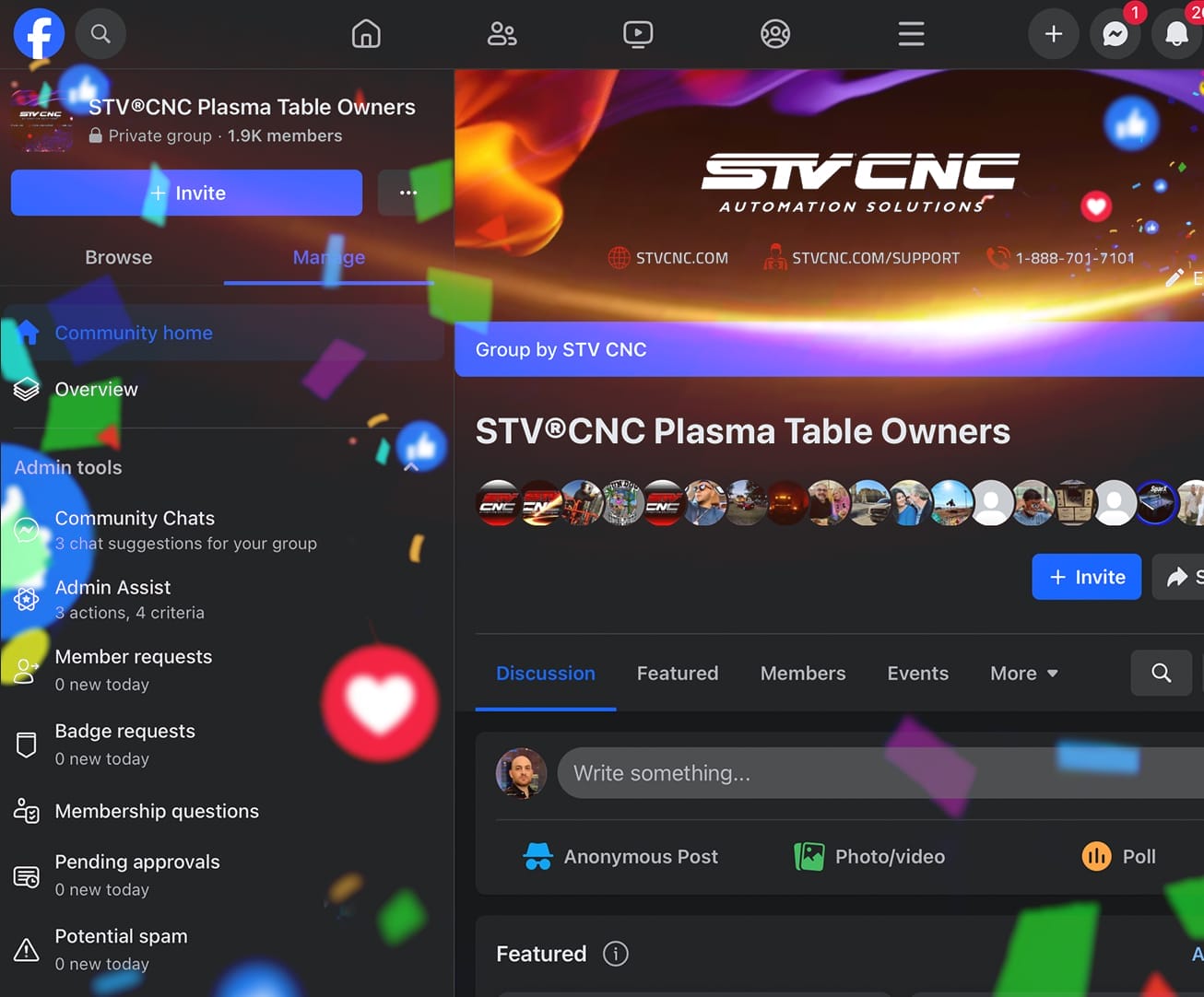
This Owner’s Group is dedicated solely to STV®CNC Plasma Table Owners with Optimum CNC Control Systems to discuss tips and tricks with other owners, share settings, quicken their learning curve, troubleshoot, access after-purchase cut files / documents and get direct support with solutions. Not a member yet? After Your Purchase, request to join our group. Please have your Purchase Invoice ready. Any additional questions, call 1-888-701-7101.

Access the Optimum CNC Private Facebook Community.

Tech Support

CHECKPOINT 15

WARRANTY

WARRANTY DETAILS ( Click Here )

STV®CNC Manufacturer’s One Year Warranty 

In Fabrication, we know issues happen & we’re here for you. The One Year Warranty covers the table bumper to bumper and begins the date one receives the product. Any table components or parts that may fail or break within the first year will undergo troubleshooting with Tech Support to verify.

There is no charge for the replacement parts.

Important: Within your warranty, we can quickly ship out replacement parts that are damaged or defective. Ground shipping for replacement parts is covered in your warranty, any additional faster expedited services will be covered by the table owner. Moreover, our table components are always in-stock and affordable even after your warranty has expired.

CHECKPOINT 16

REPLACEMENT PARTS

Click on the tabs below to buy replacement parts

CHECKPOINT 17

TECH SUPPORT

Our STVCNC® PRO Tables are backed by our Golden Prestige℠ Tech Support.

Troubleshooting? Contact Tech Support at www.stvcnc.com/support
or call us direct at 1-888-701-7101

CHECKPOINT 18

CONTACT US

To improve support and assistance, Save our phone number in your contacts: 

Click on the button below for support ticket, directions & office hours. 

Table Maintenance

CHECKPOINT 19

TABLE MAINTENANCE

Maintain table & wipe linear guides down with WD-40 and scouring pads regularly. Grease as needed. Below are Table areas and their maintenance instructions.

Table Owner Programs

CHECKPOINT 20

PROGRAMS

Across the world, STVCNC® Table Owners Unite in CNC as we provide a healthy and positive community to Business Owners, startups, corporate and government entities to share, grow and improve each others daily tasks, protocols and provide an environment that caters to networking with other like-minded industrialists. Join our STV® Family.

Social Networking